
I was helping a customer migrate a 70 TB on-premises database running Oracle Database 11.2.0.4 to Oracle Exadata Database Service on Cloud@Customer. The migration faced a key constraint: OCI does not support creating an Oracle home for 11.2.0.4, and the customer could not upgrade to 19c on-premises.
I suggested configuring Oracle Data Guard between the on-premises 11.2.0.4 database and the Cloud@Customer database, using the 19c binaries on the OCI side.
You can use this technique to migrate to Oracle Exadata Database Service on Dedicated Infrastructure, Oracle Exadata Database Service on Cloud@Customer, Oracle Base Database Service, or another on-premises environment. Also works for MultiCloud.
I have not been able to obtain official confirmation from Oracle that this approach is supported. However, I used this technique successfully in many migrations during my time in consulting. Use it at your own risk.
Redo transport worked as expected, and the databases stayed in sync.
The catch is that you cannot open the standby database in read-only mode; it must remain mounted. You also cannot perform a switchover or failover. Instead, you must activate the standby database, open it in upgrade mode, and use AutoUpgrade to upgrade it to 19c.
As a second step, you can use AutoUpgrade to convert the non-CDB to a PDB and plug it into the container database created through the console.
Let me show you how.
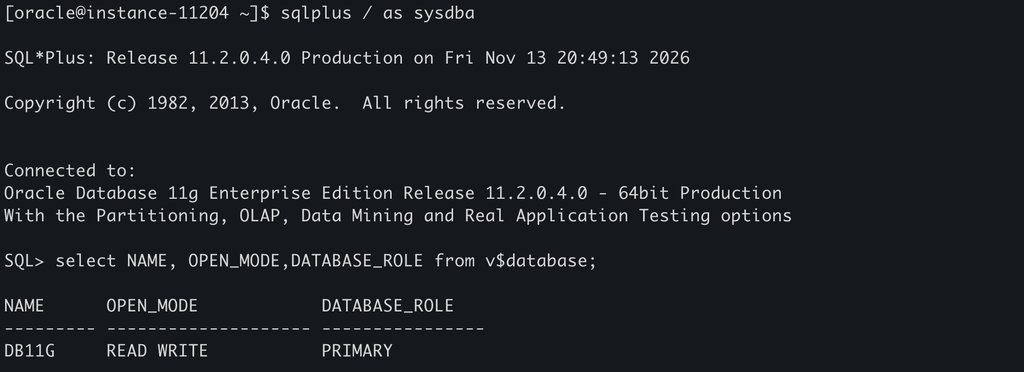
Here is my on-premises Oracle Database 11.2.0.4 running on Linux x86-64:
I manually (backup/restore) created the standby database on the Exadata side as follows:
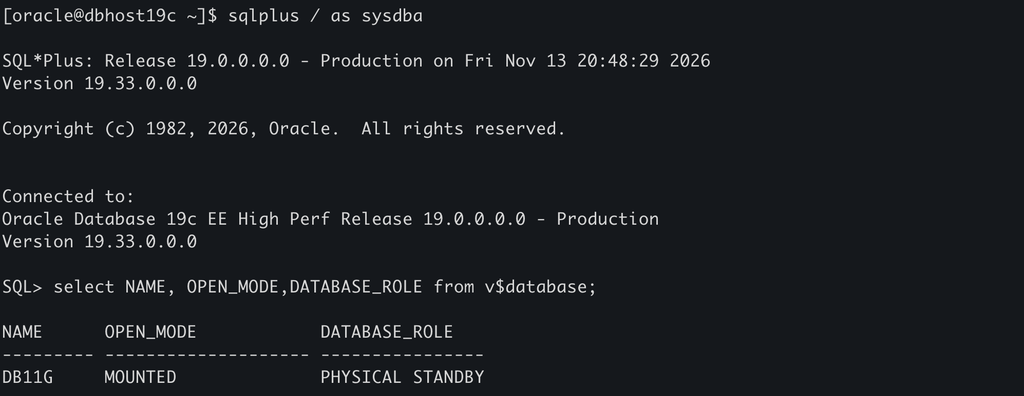
The databases are synchronized:


Let’s create some test data on the primary database:
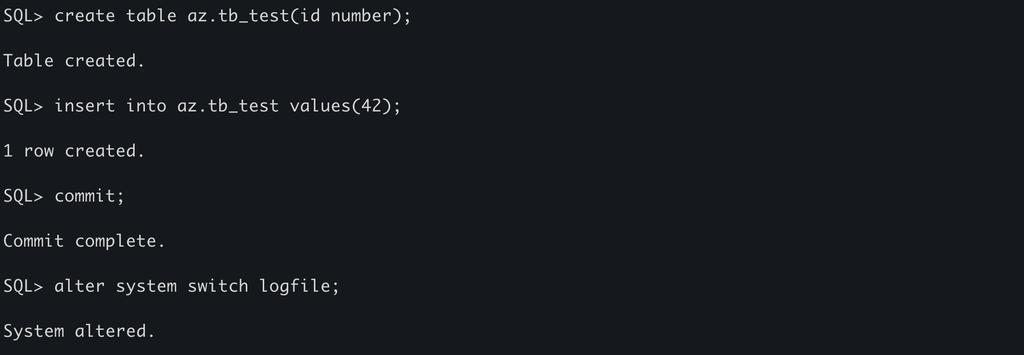
Everything looks good; the standby remains in sync:

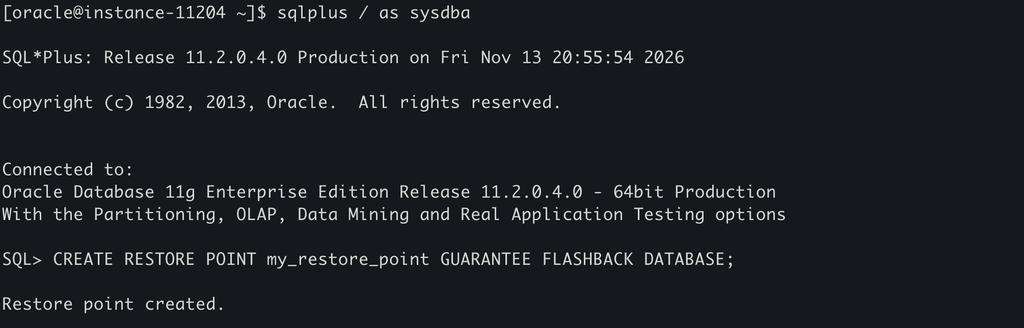
Let’s create a restore point in case anything goes wrong:
Downtime begins at this point, so disconnect any applications connected to it.
Let’s stop the apply process on the standby database:
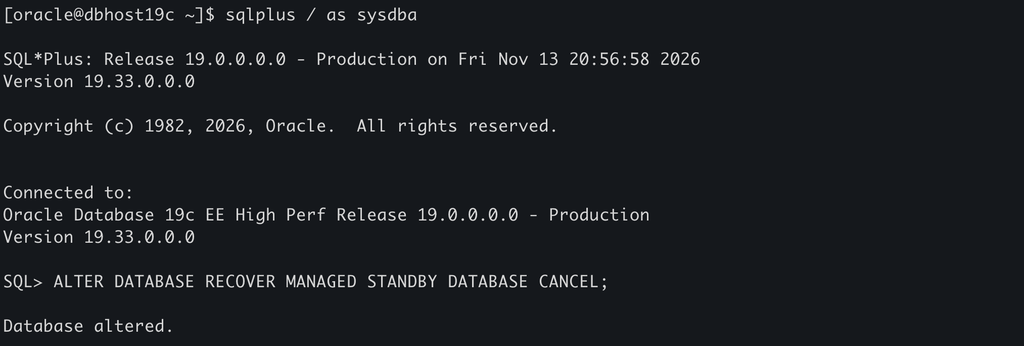
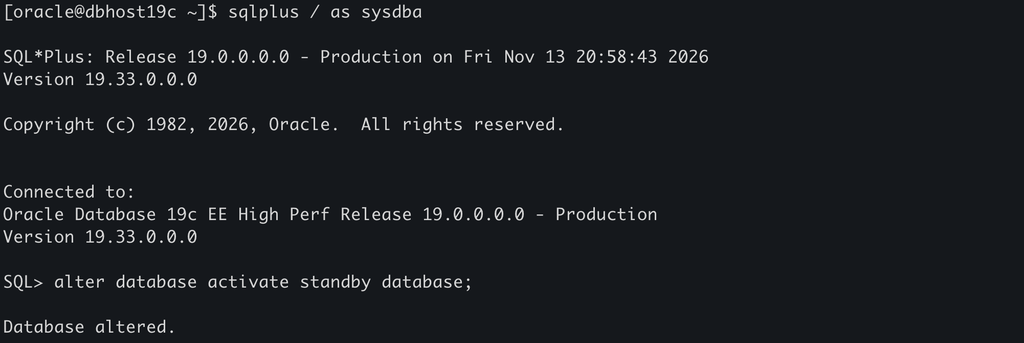
Now it’s time to activate the standby database:
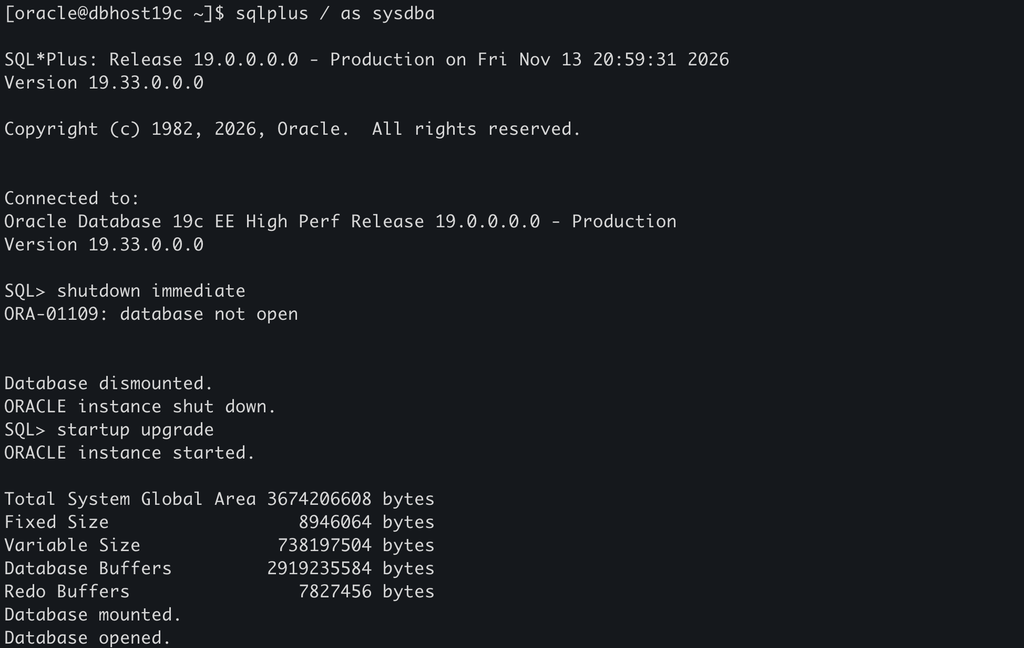
Let’s restart the database in upgrade mode:
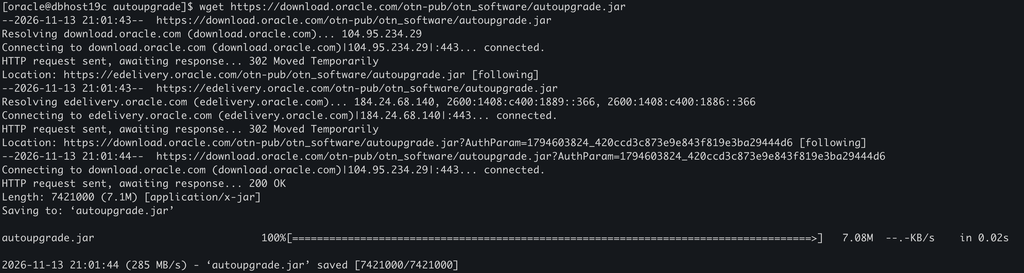
Let’s download the latest version of AutoUpgrade:
Let’s create an AutoUpgrade configuration file:

In a real-world scenario, remember to run AutoUpgrade before activate the standby:
- Run AutoUpgrade with
-mode analyzeon the source server. - Run AutoUpgrade with
-mode fixupson the source server.
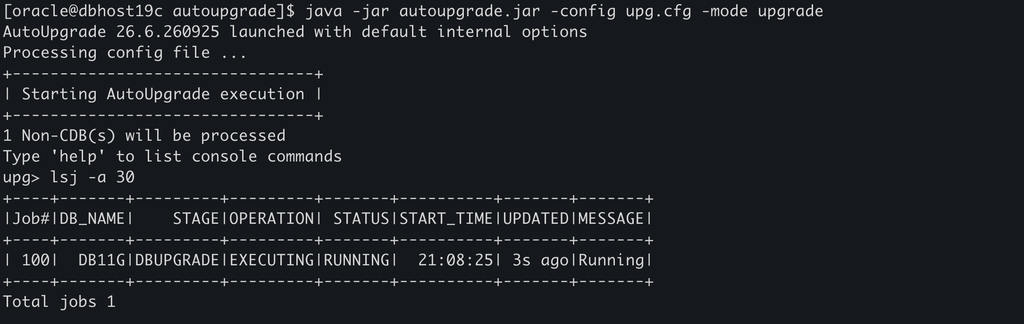
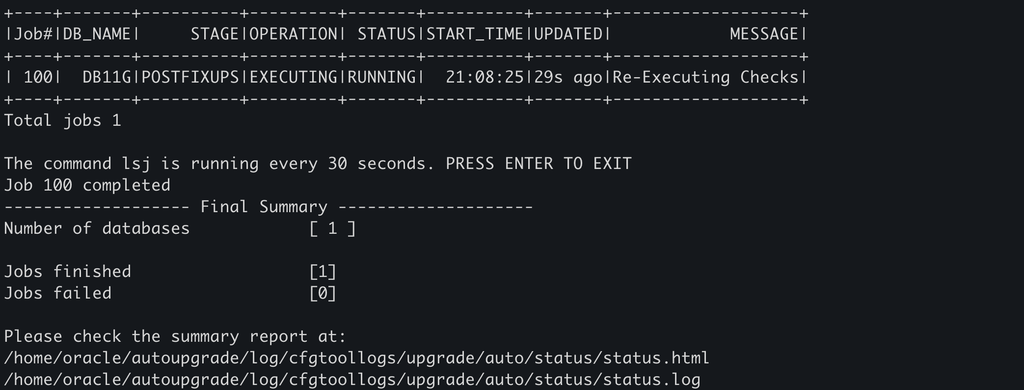
Let’s run AutoUpgrade in upgrade mode:
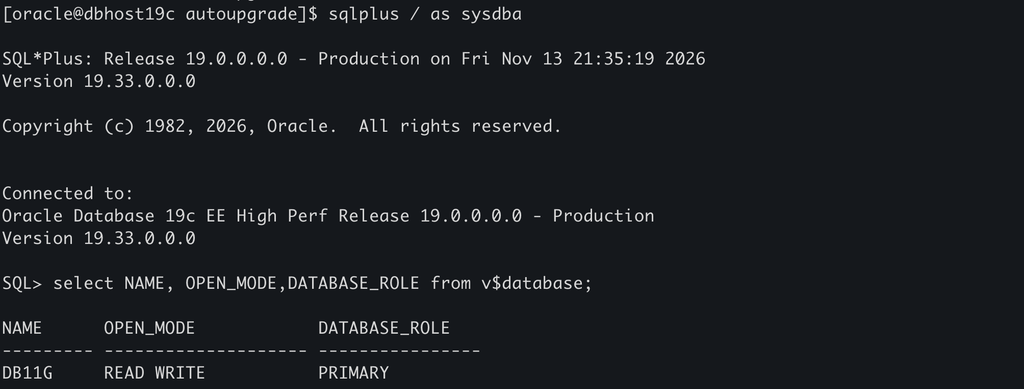
The database has been successfully upgraded to 19c:
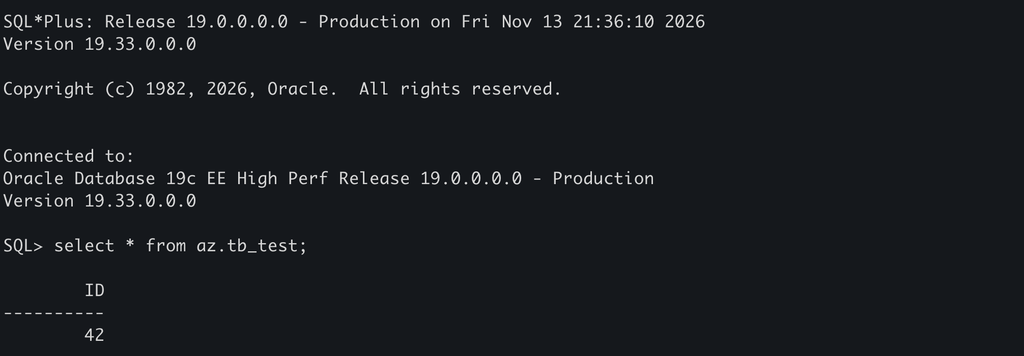
The test data is there:
Remember to clean the standby configuration on this database, specially adjusting the db_unique_name.
We can now use AutoUpgrade to convert this 19c non-CDB into a PDB and plug it into a CDB created through the console.
Here’s the configuration file:
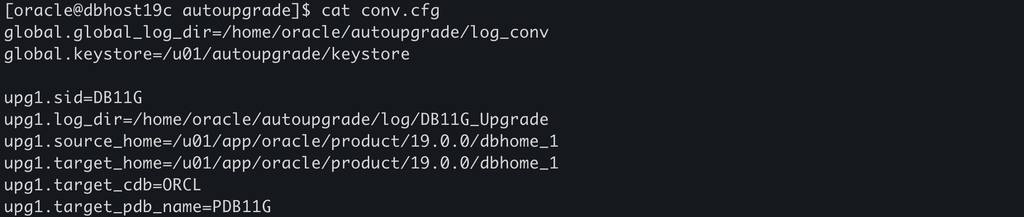
We will convert DB11G into a PDB and plug it into the container database as PDB11G.
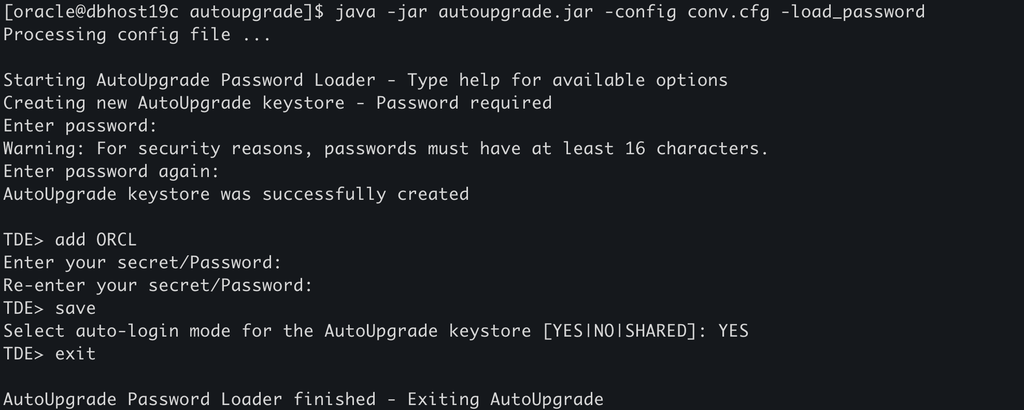
OCI databases have TDE enabled, so let’s load the credentials:
Let’s run AutoUpgrade:
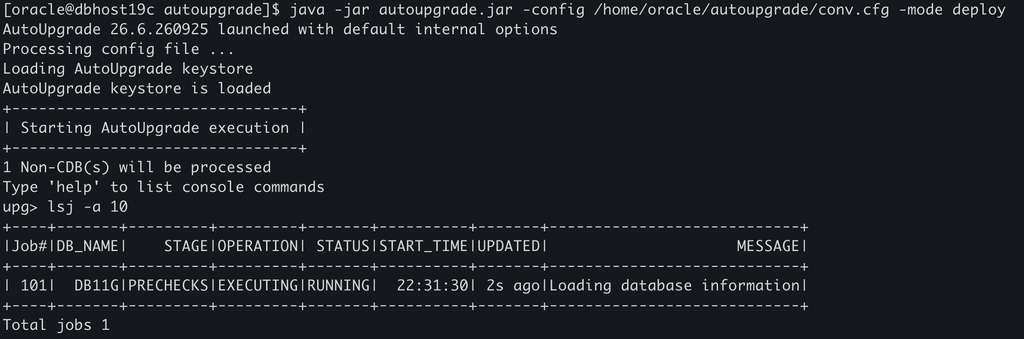

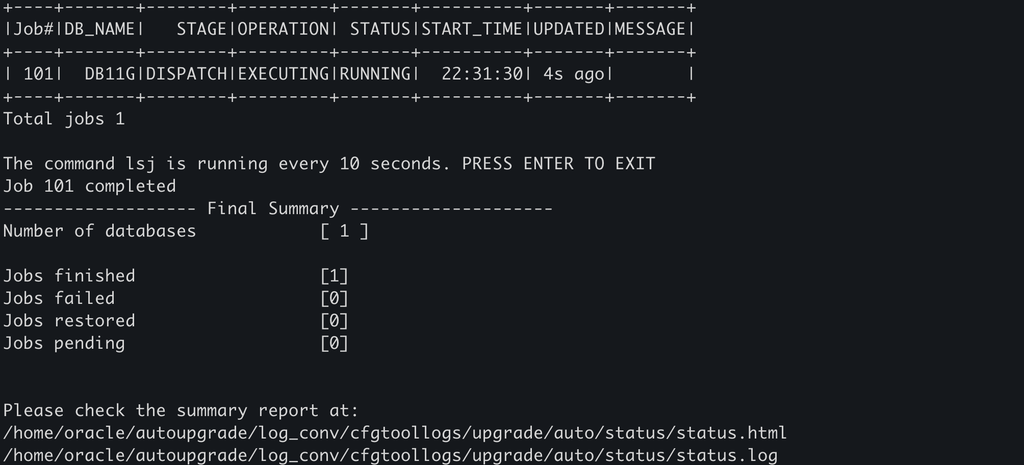
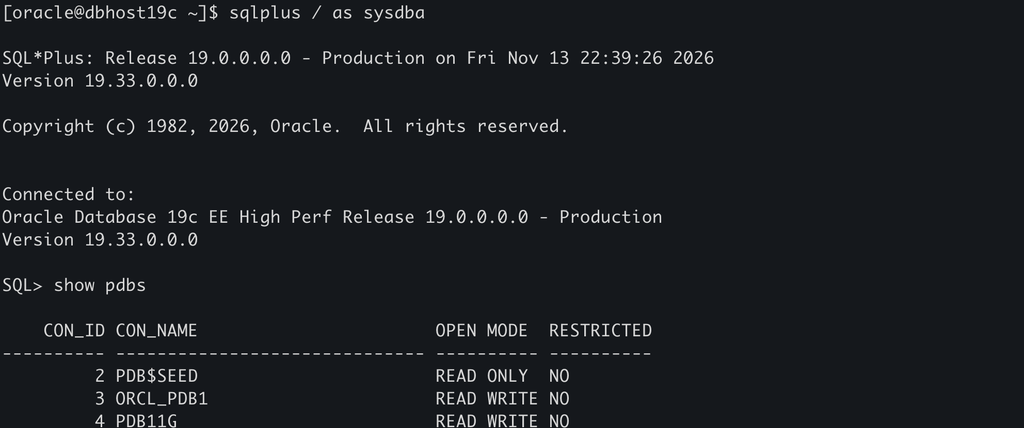
The database is now plugged in the 19c container:
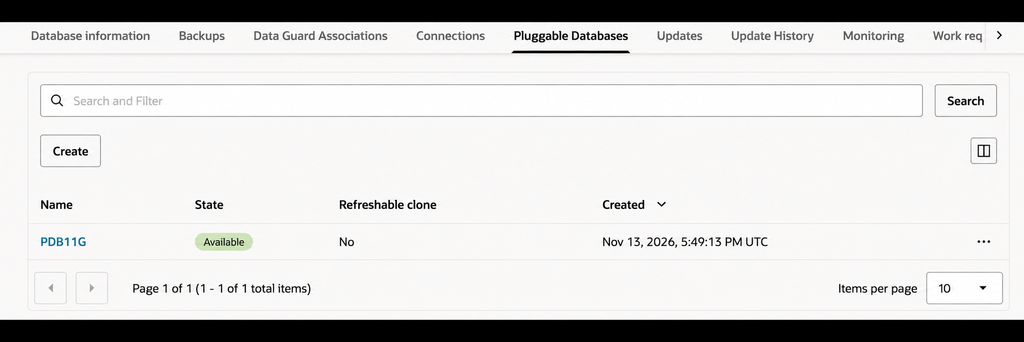
And the PDB is now visible trough the console:
Remember to drop the restore points you created.
You can now encrypt the tablespaces in the new PDB.